
Normalization Packages are collections of log signatures that normalize logs from a particular log source. A log signature is a rule that defines how key value pairs are extracted from a log.
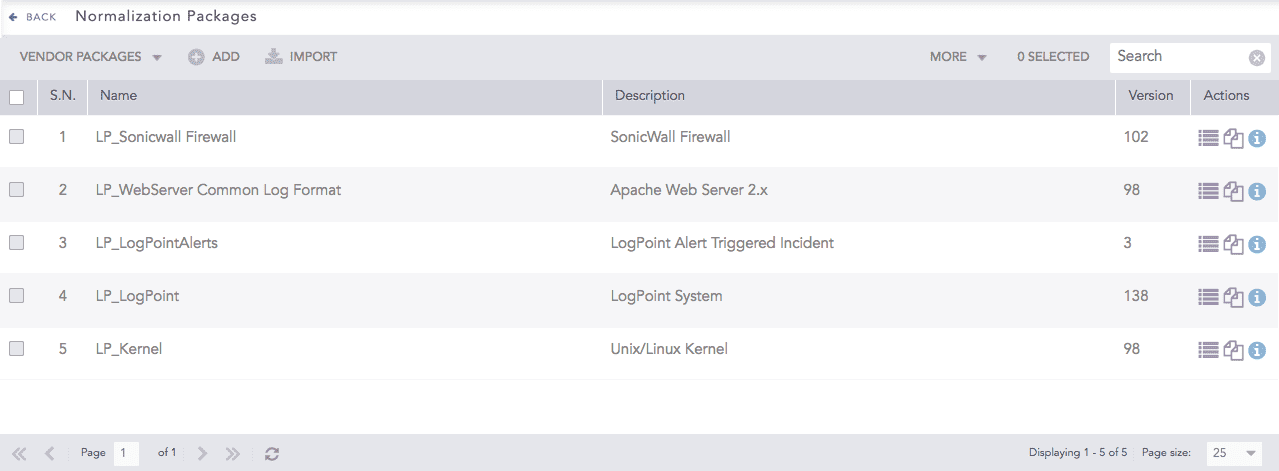
Normalization Packages
There are two types of Normalization Packages.
Vendor Packages are the Normalization Packages bundled with the Logpoint installation.
My Packages are the Normalization Packages that you add in the Logpoint.
Go to Settings >> Knowledge Base from the navigation bar and click Normalization Packages.
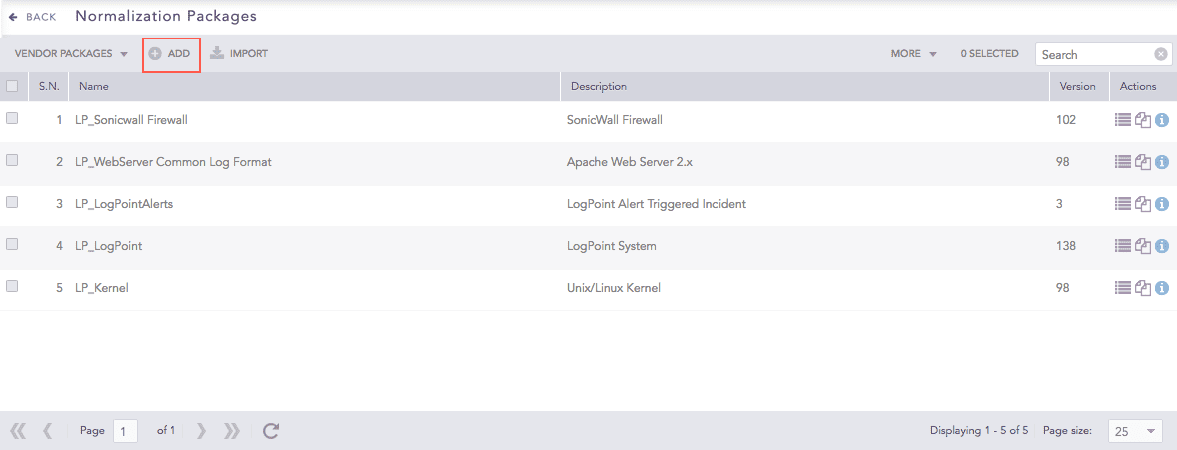
Normalization Packages
Click Add.
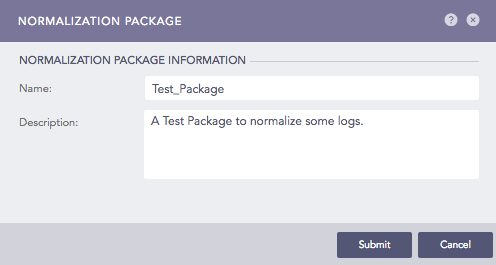
Creating a Normalization Package
Enter a Name and a Description of the Normalization Package.
Click Submit.
To add signatures, click Signatures icon under Actions.
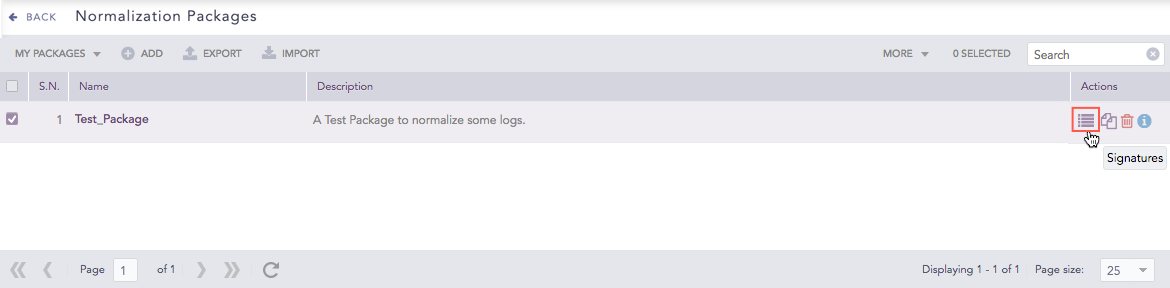
Normalization Packages
Click Add.
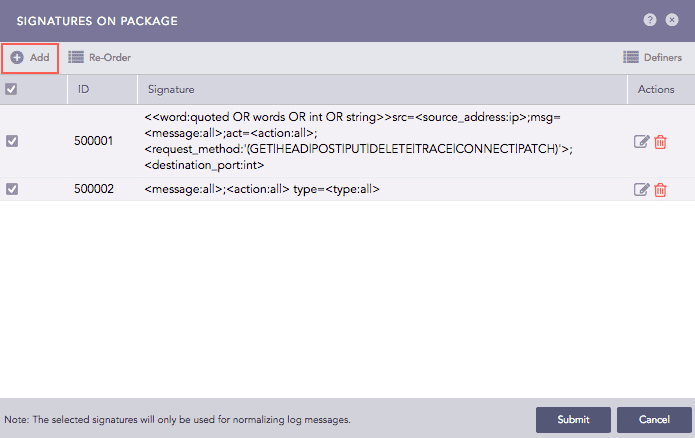
Signatures on the Package
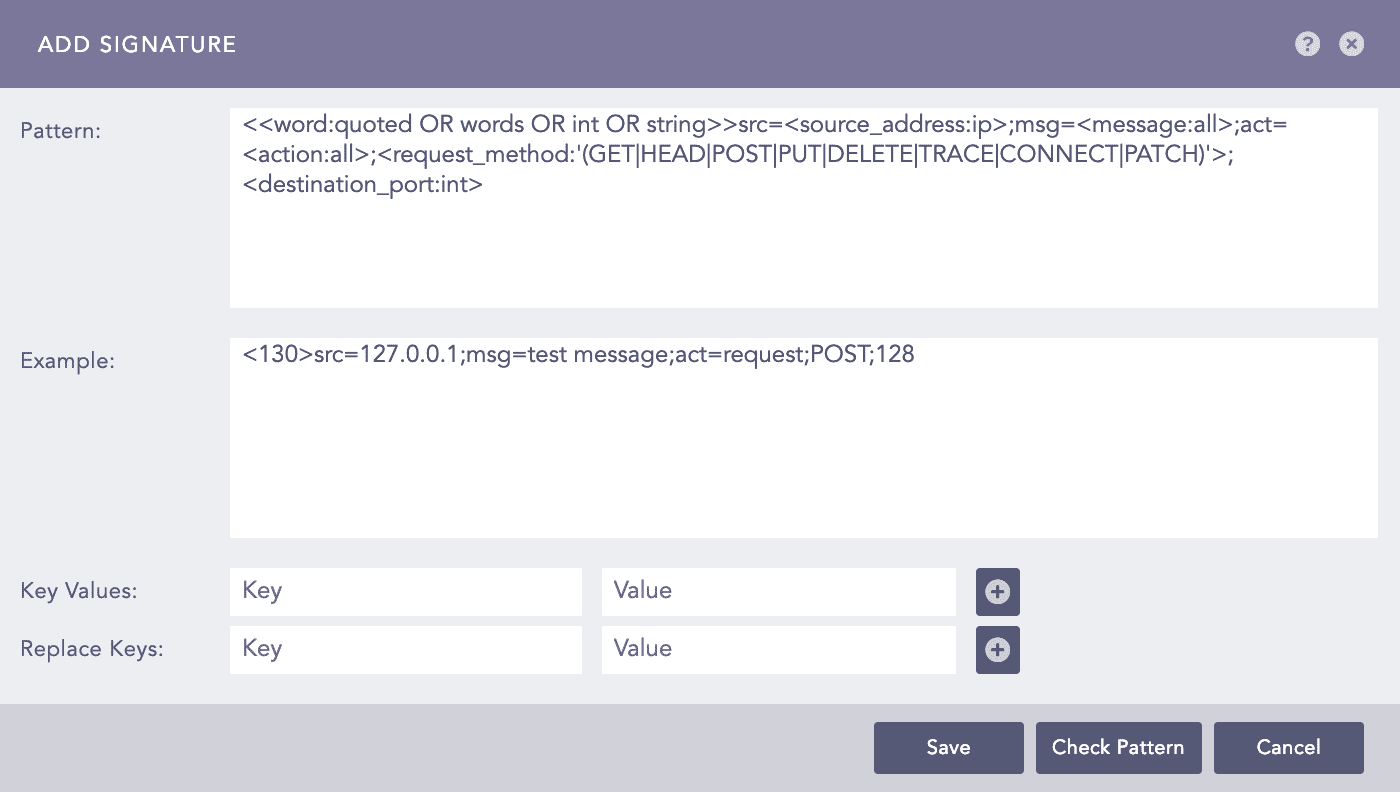
Adding a Signature
In Pattern, enter the signature.
In Example, enter the log message resembling the signature but it is optional.
Click Check Pattern to check if the signature matches the example.
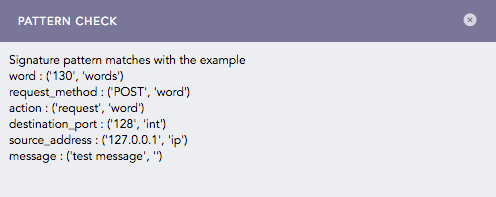
Checking a Signature Pattern
Note
Click the ? symbol near the top-right corner for context-sensitive help.
Use Key Values fields to attach other values to a signature. For example, for a particular signature that captures process failure, you can add a key-value as object = “process” and status = “failure”.
Use Replace Keys to replace a key-value pair with another. For example, if there is a field host_user in a log, you can replace this with host using the Replace Keys textfields.
Click Save.
Click Submit. You can add as many signatures to the package as you need.
Click Re-Order to sort them.
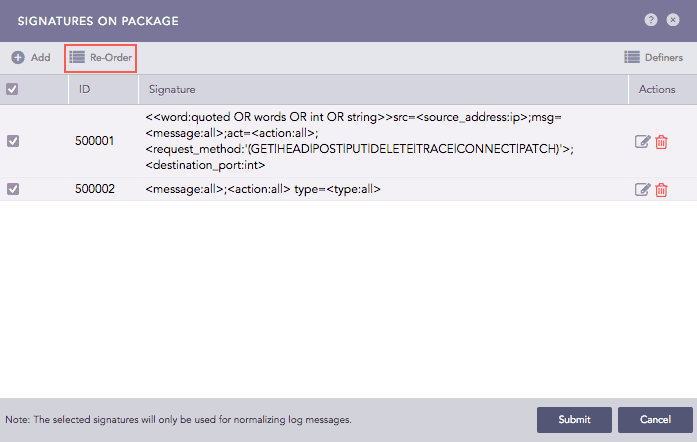
Signatures
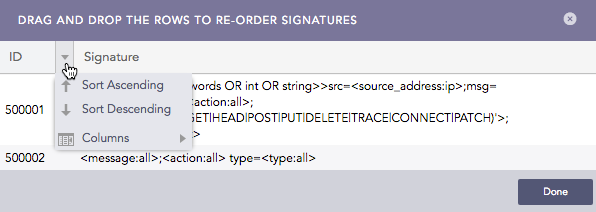
Re-ordering Signatures
Click Definers to view the Signature Definers. For more details, go to List of Definers.
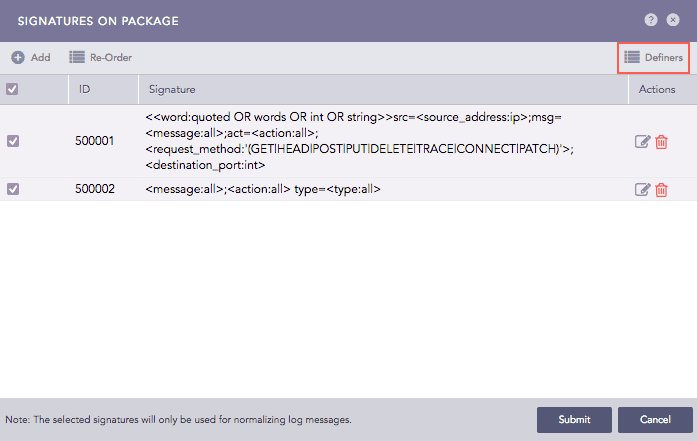
Signatures
Note
You can switch between My Packages and Vendor Packages by clicking the dropdown at the top-left.
Go to Settings >> Knowledge Base from the navigation bar and click Normalization Packages.
Click the View Signatures icon under Actions of the respective normalization package.
Normalization Packages
Deselect the signatures that you want to deactivate.
Click Submit.
Only the selected signatures are used to normalize log messages.
You can export a normalization package from one machine and import it in other machines to save configuration time.
Go to Settings >> Knowledge Base from the navigation bar and click Normalization Packages.
Select the dropdown at the top-left and click My Packages.
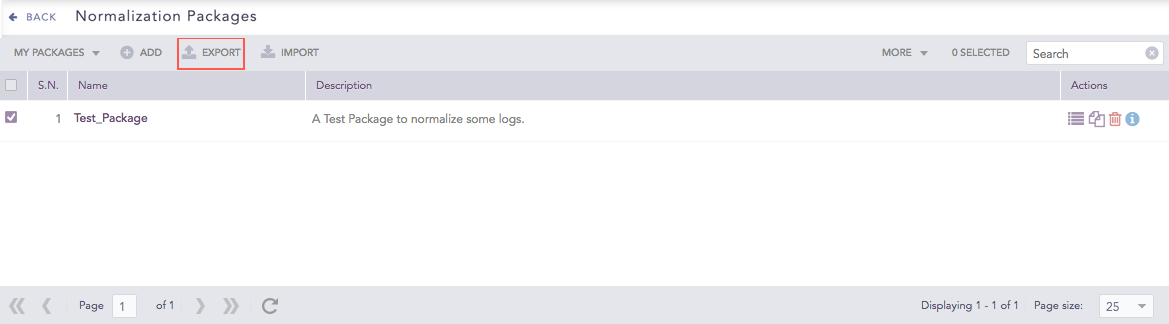
Export Normalization Packages Icon
Select the normalization packages you want to export.
Click Export.
Save the exported file.
You can import normalization package of other devices to save configuration time.
Go to Settings >> Knowledge Base from the navigation bar and click Normalization Packages.
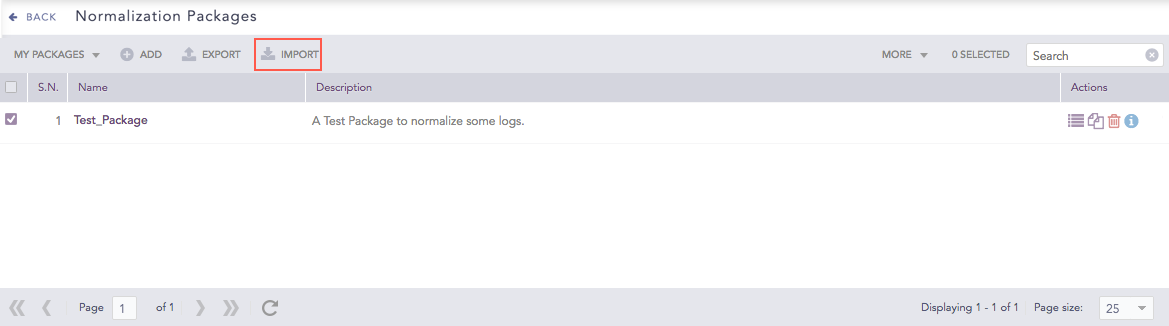
Import Normalization Packages Icon
Click Import.
Browse for the Normalization Package.
Click Upload.
Go to Settings >> Knowledge Base from the navigation bar and click Normalization Packages.
Click the Name of the package to edit and update the information. You cannot edit the name of a Normalization Package.
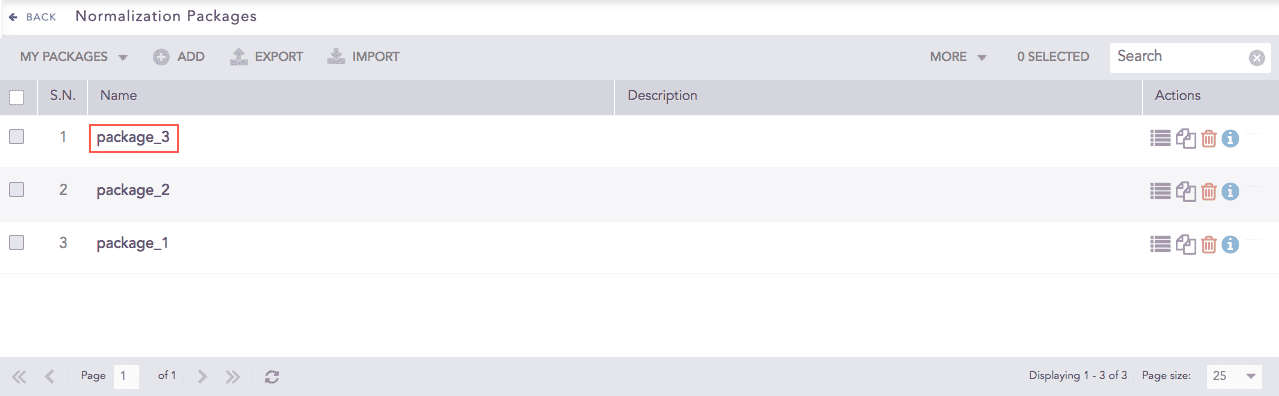
Editing Normalization Packages
Click Submit.
You can clone a normalization package to modify it with minor changes and save configuration time.
Go to Settings >> Knowledge Base from the navigation bar and click Normalization Packages.
Click the Clone Package icon under Actions.
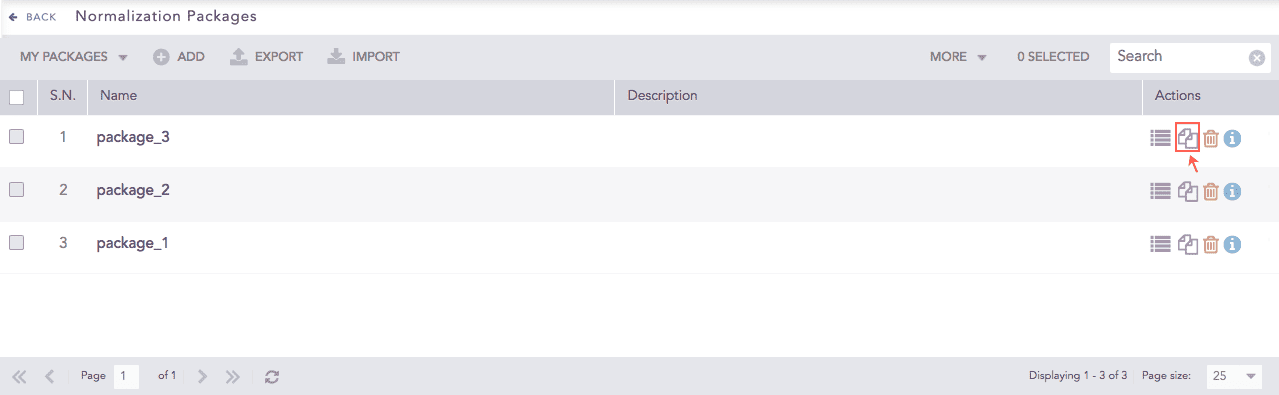
Cloning a Normalization Package
To clone multiple normalization packages, select the respective packages. Click More and choose Clone Selected Packages.
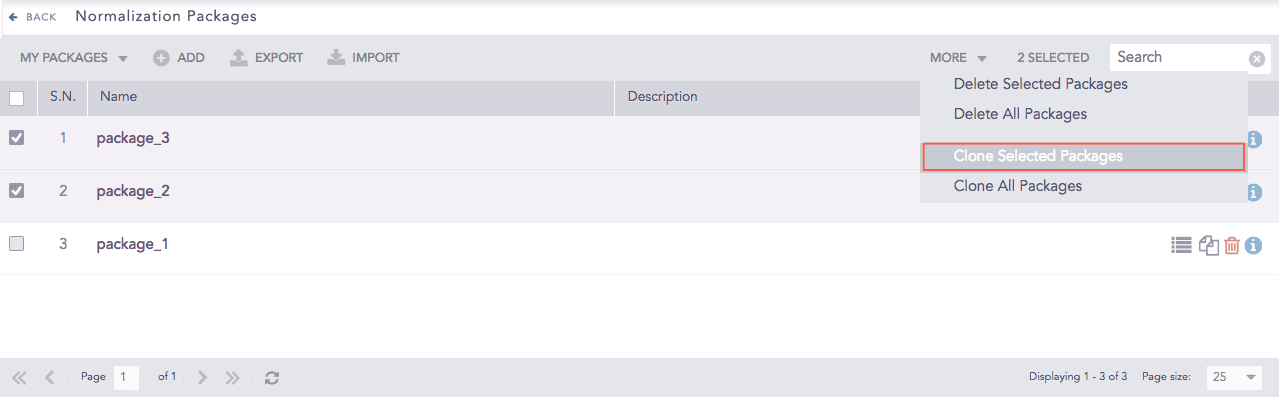
Normalization Packages
To clone all the normalization packages, click More and choose Clone All Packages.
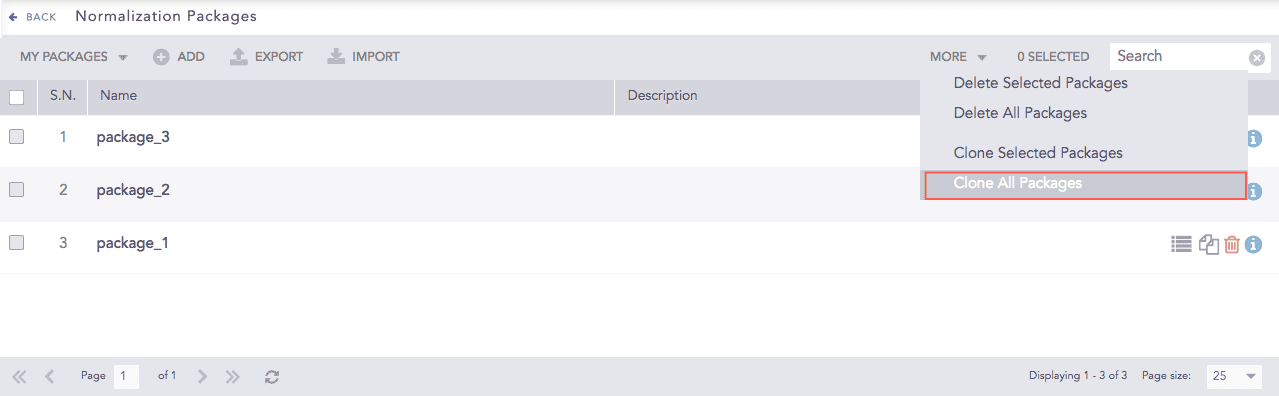
Normalization Packages
Enter a new Name for the cloned package.
Select Replace to replace an existing package with the same name.
Click Clone.
Go to Settings >> Knowledge Base from the navigation bar and click Normalization Packages.
Click the Delete icon under Actions.
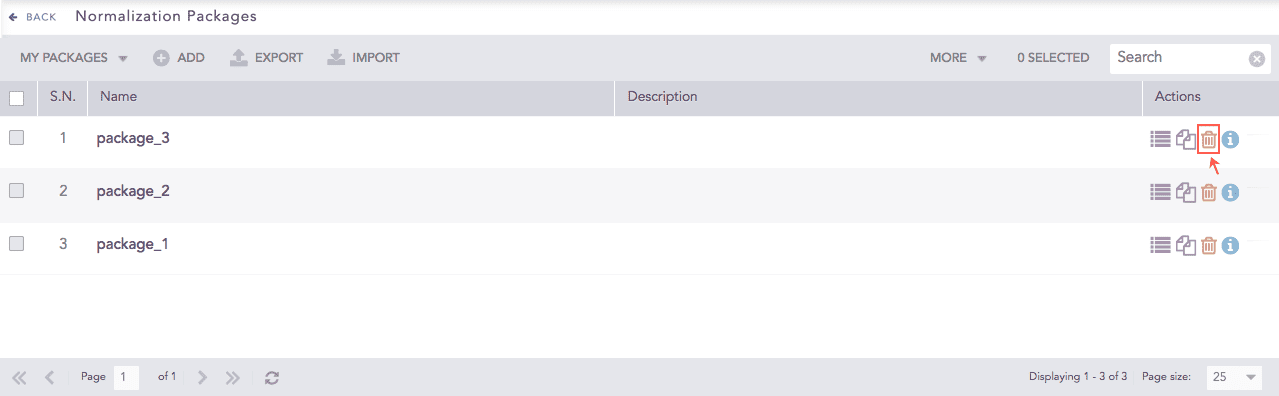
Deleting a Normalization Package
To delete multiple normalization packages, select the packages. Click More and choose Delete Selected Packages.
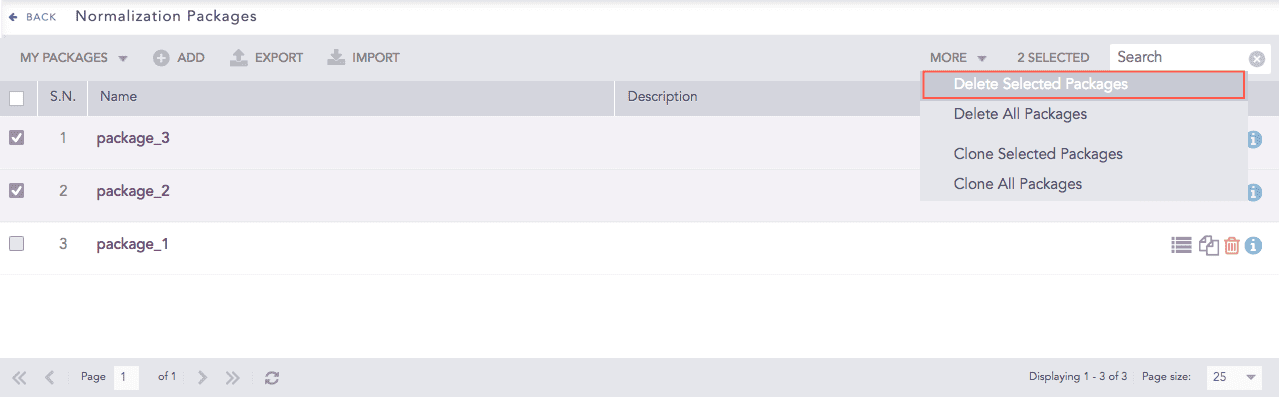
Normalization Packages
To delete all the normalization packages, click More and choose Delete All Packages.
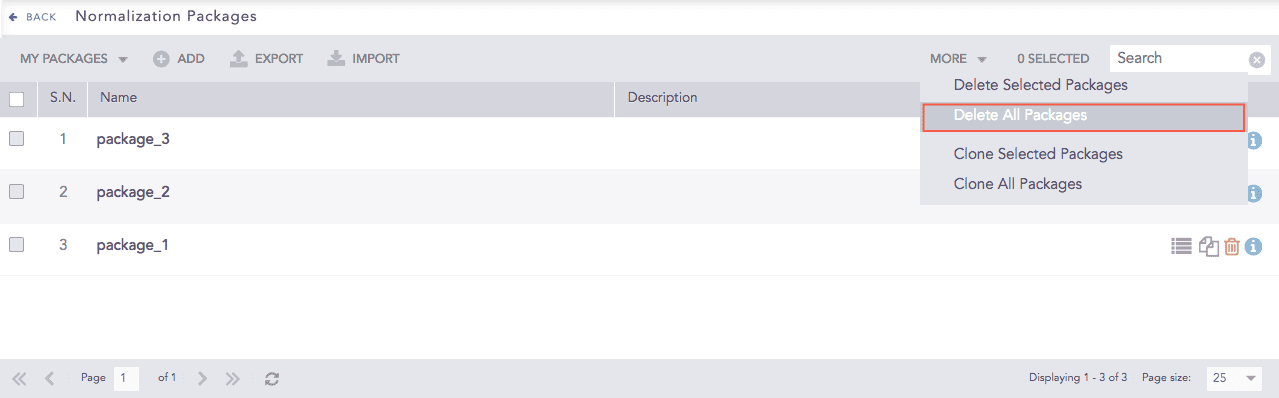
Normalization Packages
Click Yes to confirm deletion.